
Manage Templates
Templates can be uploaded and downloaded using the application.
Users may download and (if the user is a Web Admin) upload templates to the server.

Download Templates
All users have the ability to download templates from the server. This is mainly intended for support purposes. The downloaded template set is packed in a zip file. The Download Templates ability can be enabled/disabled in the web.config using the application setting 'showManageTemplates'.
Upload Templates
Web-admins may also upload templates to the server. Either as a full template set (all files are expected!) or as a single template file (see below).
Upload a new Template Set
To upload a new template set, select the value Create New Template Folder at the bottom of the Templates drop down list.
Then select the root folder of the local template set you intended to upload in the Select Local Template Set directory selector.
The selected template set is expected be a folder containing all template files, including subfolders i.e. not a zip file!
If an existing template folder on the server has the same name as the locally selected template folder, the upload will not be accepted.
Finally, click Upload chosen files to selected Template Set and wait until the confirmation of the successful upload is displayed.
Replace Content of an Existing Template Set
To replace the content of an existing template set (on the server), select the template set on which to operate in the Templates drop down list.
Then select the root folder of the local template set, containing the replacement candidates you intended to upload, using in the Select Local Template Set directory selector.
The selected template set is expected be a folder containing all template files, not a zip file!
Click Upload chosen files to selected Template Set to initiate the upload and wait until the confirmation of the successful upload is displayed.
During the upload, the template folder containing the existing template files on the server is backed-up (i.e. copied and zipped). The zip file is named with the template set name and a time stamp. It is stored in the parent directory to the template set on the server.
If the existing template set contains a file with the same name as an uploaded file, the existing file is replaced (overwritten) with the updated file.
If the existing template set contains a file that does not have a corresponding file in the uploaded set, that existing file is deleted.
If the uploaded template set contains a file that does not have a corresponding file in the existing template set (i.e. having the same name), then that file is added.
No validation checks are made on the uploaded files! Therefore, make sure that the uploaded templates are thoroughly tested before uploading them!
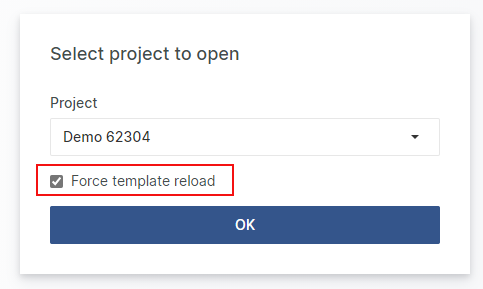
Any changes to templates need to be 'applied' by loading the affected projects with Force template reload for the changes to take effect (renames, additional attributes etc.).
Upload Single Template File
Web Admins may also upload a single template file to the server.
To upload a single template file, select the template set on which to operate in the Templates drop down list.
Then select the local file to upload using in the Select Local Single Template File file selector.
Click Upload chosen files to selected Template Set to initiate the upload and wait until the confirmation of the successful upload is displayed.
During the upload, the entire template folder containing the existing template files on the server is backed-up (i.e. copied and zipped). The zip file is named with the template set name and a time stamp. It is stored in the parent directory to the template set.
If the existing template set contains a file with the same name as the uploaded file, the existing file is replaced (overwritten) with the updated file.
If the uploaded file that does not have a corresponding file in the existing template set (i.e. having the same name), then that file is added to:
The template root folder if the file is a rvt file.
The RTFTemplates folder is the file is a docx file
No validation checks are made on the uploaded file! Therefore, make sure that the uploaded file is thoroughly tested before uploading it!
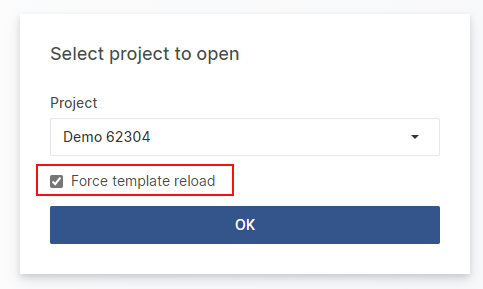
Any changes to templates need to be 'applied' by loading the affected projects with Force template reload for the changes to take effect (renames, additional attributes etc.).
Transfer Templates (for Aligned eQMS)
Transfer Templates makes it possible to transfer files located in the Template set's Document Templates subfolder (containing the Document templates selectable when clicking on a File Attribute Browse Templates button in a File Object) to the Document Templates of another Template set.
We can use this function to transfer Technical File document templates (such as Product Requirements.docx etc) released in an eQMS project to the Design Control projects where these documents are created.

Use the following process to transfer Word document templates between template sets:
Select the Source Template Set in the dropdown on the left side.
Select the Target Template Set in the dropdown on the right side.
Colors indicates as:
Green: the Document Template only exists in the Source Template Set
Yellow: the Document Template exists in both template set but is newer in the Source Template Set
Select the Document Templates to transfer in the left list.
Click Copy to this side to copy the selected Document Objects to the Template Set on the right side. Optionally, click the checkbox Remove old versions in 'To' on Copy to automatically remove older versions of a transferred document.
Mis à jour